
Appearance
Applications Tab
The Applications tab displays Start Menu shortcuts that are allowed by your policy configuration. Applications are launched in isolated Turbo containers for enhanced security.
What you'll learn
- How to launch applications
- Context menu options
- Launch profiles
- Diagnostic mode
- Reset session functionality
Overview
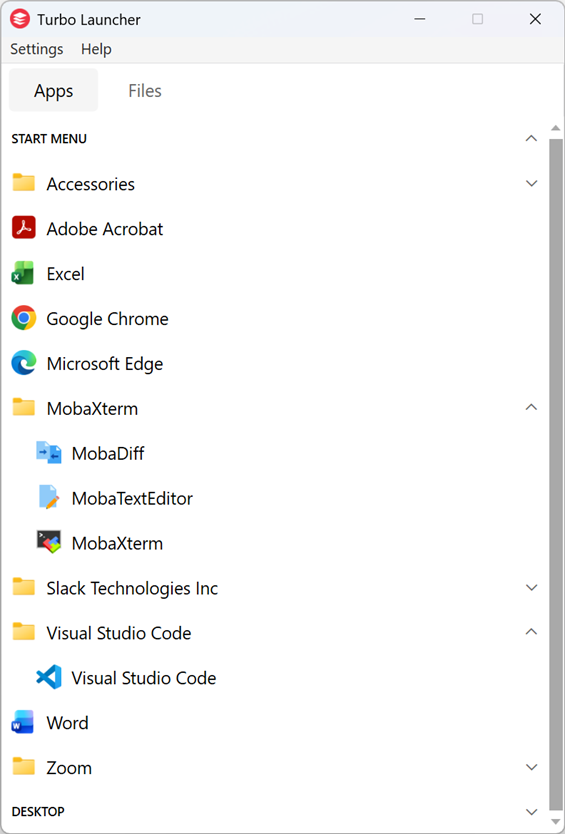
The Applications tab organizes shortcuts in an expandable tree view with two top-level categories: START MENU and DESKTOP. Only applications explicitly allowed by your policy configuration are displayed.
Launching Applications
Click any application button to launch it in a Turbo container with policy-configured security settings applied automatically.
Context Menu
Right-click any application to access additional launch options:
Run
Launches the application with base policy settings applied.
Launch Profiles
If configured in your policy, additional profile menu items appear after "Run". Each profile provides a different launch variant with specific modifications on top of the base policy.
Example profiles:
- Run Chrome (Incognito)
- Run Chrome (Profiling Mode)
- Run VS Code (Extensions Disabled)
See the Policy System documentation for configuring launch profiles.
Run in Diagnostic Mode
Launches the application with the --diagnostic flag enabled. After the application exits, the logs folder automatically opens in Windows Explorer for troubleshooting.
Reset Session
Deletes the application's container session, removing all:
- Application data
- Settings and preferences
- Cached files
- Session state
This is equivalent to running: turbo rm -f {container-name}
A confirmation dialog appears before resetting.
Organization
START MENU Section
Displays shortcuts from:
- Current User:
%APPDATA%\Microsoft\Windows\Start Menu\Programs - All Users:
%PROGRAMDATA%\Microsoft\Windows\Start Menu\Programs
The folder hierarchy is preserved with expandable/collapsible folders. Top-level folders appear in uppercase without icons.
DESKTOP Section
Displays shortcuts from:
- Current User Desktop:
%USERPROFILE%\Desktop - Public Desktop:
%PUBLIC%\Desktop
Desktop shortcuts appear in a flat list (subfolders are not included). This section only appears if there are shortcuts on the desktop.
Supported Shortcut Types
- .lnk files: Windows shortcut files
- .url files: Internet shortcuts
- .exe files: Direct executables (via Windows shell context menu)
Keeping Up to Date
The application list updates automatically when:
- Shortcuts are added, removed, renamed, or moved in Start Menu or Desktop
- Policy configuration is changed
- Background refresh occurs (every 5 minutes)
Press F5 to manually refresh the list at any time.
Policy Control
The Launcher uses a security policy to control which applications are available. Only applications that match an "allow" policy will appear in the list. If an expected application is missing, check your policy configuration to ensure it has an allow rule.
Next Steps
- Launch Profiles: Configure multiple launch variants
- Policy Configuration: Control which applications are shown
- Troubleshooting: Common application launch issues